NSP Scholarship Face Authentication Failed? Fix All Errors (2026 Guide)
Introduction
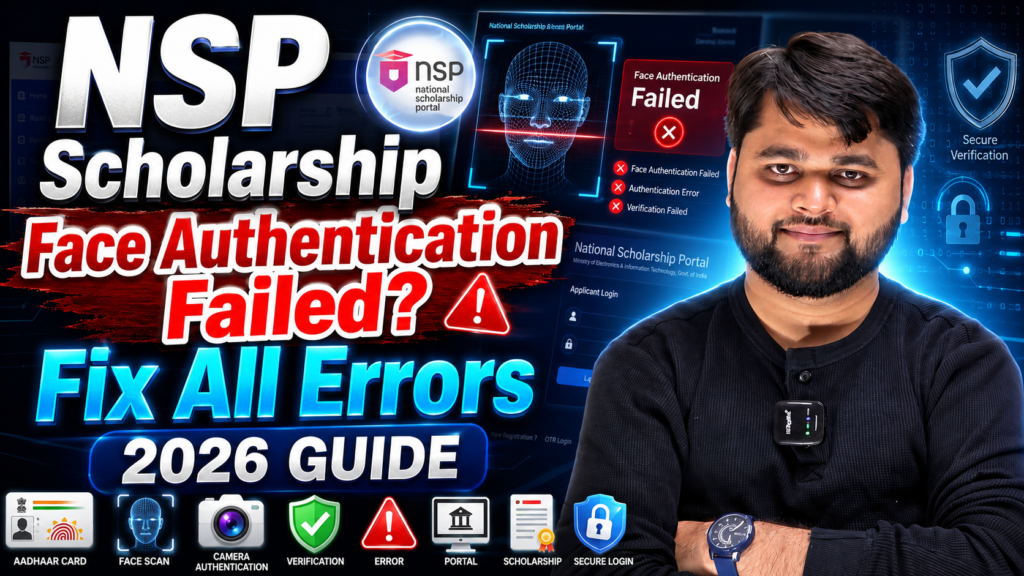
If you are seeing the NSP Scholarship Face Authentication Failed? Fix All Errors (2026 Guide) message while applying for or renewing your National Scholarship Portal (NSP) application, don’t panic. Thousands of students encounter face authentication issues every year, and in most cases, the problem can be resolved within a few minutes by following the correct steps.
The nsp scholarship face authentication error usually appears during Aadhaar verification when the system cannot match your live face with the Aadhaar database. Sometimes the issue is related to the Aadhaar FaceRD app, internet connectivity, outdated Aadhaar records, camera permissions, or temporary server problems. Regardless of the reason, understanding the exact cause is the first step toward solving it.
In this complete 2026 guide, you’ll learn why the face authentication failed error occurs, the most common reasons behind the aadhaar app face authentication failed message, and practical solutions that work for most students. We’ll also cover troubleshooting tips for nsp face authentication credentials problem, explain when you should update your Aadhaar details, and show you how to complete verification successfully without delaying your scholarship application.
By the end of this guide, you’ll have a clear action plan to fix face authentication issues and continue your NSP Scholarship application with confidence.
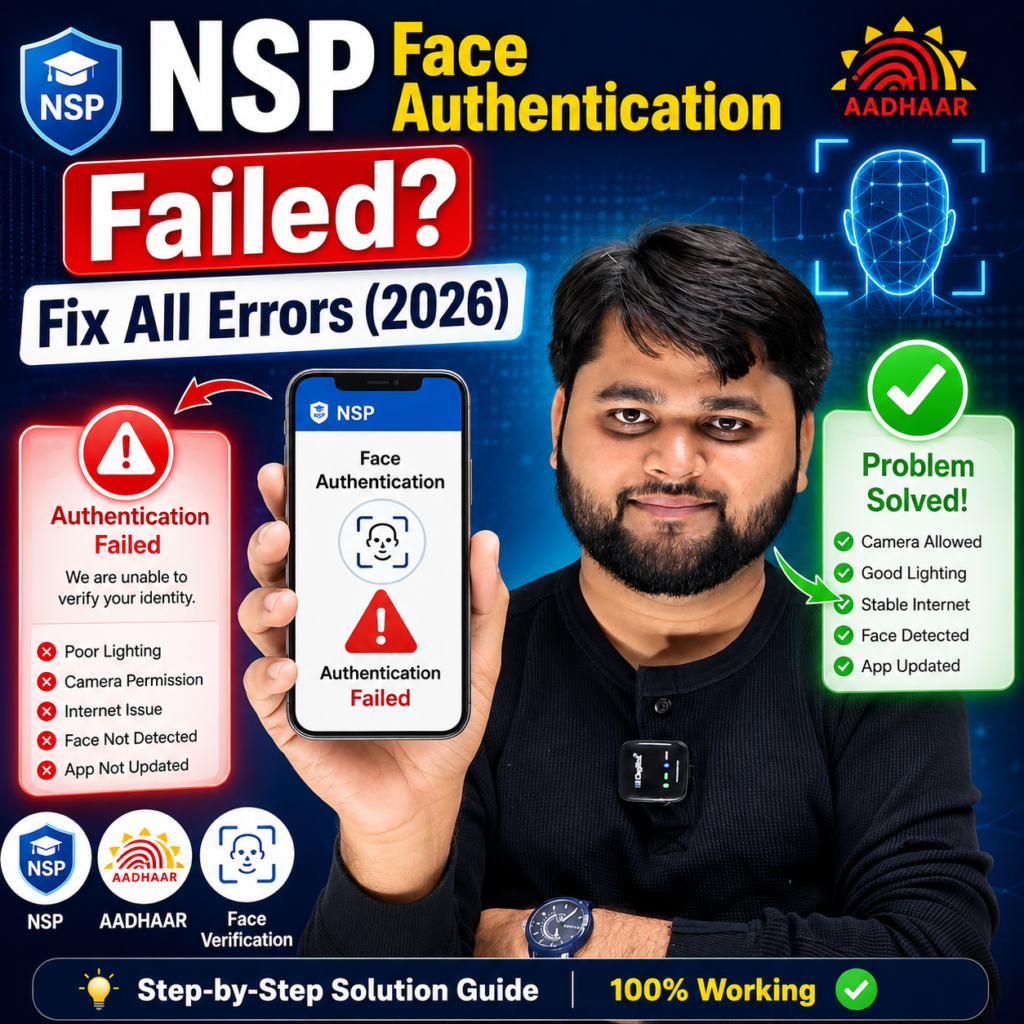
Why Does the NSP Scholarship Face Authentication Failed Error Occur?
The NSP Scholarship Face Authentication Failed error appears when the National Scholarship Portal cannot successfully verify your identity using Aadhaar Face Authentication. Since Aadhaar verification is an important security step for many scholarship schemes, even a small issue can prevent the authentication process from completing.
In simple words, the system compares your live facial image with the biometric information linked to your Aadhaar number. If the match is unsuccessful or the authentication process is interrupted, the portal displays an error message.
Several technical and user-related factors can trigger this problem. Understanding these causes will help you identify the right solution instead of repeatedly attempting face verification.
Some of the most common reasons include:
1. Poor Internet Connection
A slow or unstable internet connection may interrupt communication between the Aadhaar authentication server and the NSP portal. This often causes the authentication request to fail before completion.
2. Outdated Aadhaar FaceRD Application
Using an older version of the Aadhaar FaceRD app is one of the leading causes of the aadhaar app face authentication failed error. The application should always be updated to the latest version available on the Google Play Store.
3. Camera Permission Not Granted
If your device blocks camera access for the FaceRD application, the app cannot capture your live facial image correctly, resulting in authentication failure.
4. Low Lighting or Blurred Face Scan
Face authentication relies on clear facial recognition. Poor lighting, shadows, sunglasses, masks, or blurry camera images can prevent the system from identifying your face accurately.
5. Aadhaar Photograph Doesn’t Match
If your Aadhaar photo was taken several years ago and your appearance has changed significantly, the system may fail to match your live face with the stored image.
6. UIDAI Server Issues
Sometimes the issue is not from your side. During peak application periods, UIDAI or NSP servers may experience heavy traffic, causing temporary authentication failures.
7. Incorrect Aadhaar Details
Entering the wrong Aadhaar number or using Aadhaar information that does not match your NSP application can also lead to verification errors.
8. Device Compatibility Problems
Certain older Android devices may not fully support the latest FaceRD application, causing repeated nsp face authentication problem errors.
9. Credentials Synchronization Error
Occasionally, students encounter an nsp face authentication credentials problem, where the NSP portal is unable to sync authentication credentials with UIDAI servers. Waiting for some time and trying again often resolves this issue.
10. Temporary Technical Maintenance
During maintenance or system upgrades, authentication services may be unavailable for a short period. In such cases, it is best to retry after a few hours.
Quick Summary
| Problem | Possible Reason | Quick Solution |
|---|---|---|
| Face Authentication Failed | Face mismatch | Retry in good lighting |
| Aadhaar Face Authentication Failed | Old Aadhaar photo | Update Aadhaar if required |
| Aadhaar App Face Authentication Failed | Outdated FaceRD App | Install the latest version |
| Camera Not Opening | Camera permission denied | Enable camera access |
| Authentication Processing Error | Poor internet | Switch to stable Wi-Fi or mobile data |
| UIDAI Server Error | Heavy server traffic | Try again after some time |
| Credentials Problem | NSP and UIDAI sync issue | Retry later or refresh login |
| Face Scan Not Detecting | Low light or blurry image | Clean camera and improve lighting |
| Authentication Session Expired | Long inactivity | Restart the verification process |
| Multiple Failed Attempts | Security restriction | Wait for some time before retrying |
How to Fix NSP Scholarship Face Authentication Failed Error (2026)
If your NSP Scholarship Face Authentication Failed error is preventing you from submitting your application or renewal, don’t worry. Most authentication issues can be fixed by following a few simple troubleshooting steps. Before visiting any Aadhaar center or contacting support, try the solutions below one by one.
1. Check Your Internet Connection
Face authentication requires a stable internet connection to communicate with the UIDAI authentication server.
Before starting the verification process:
- Connect to a reliable Wi-Fi network or use strong 4G/5G mobile data.
- Avoid switching between Wi-Fi and mobile data during authentication.
- Turn Airplane Mode on and off once if your network seems unstable.
- Retry the authentication after reconnecting.
A weak internet connection is one of the most common reasons behind the face authentication failed message.
2. Update the Aadhaar FaceRD App
Many students continue using an older version of the FaceRD application, which often causes compatibility issues with the latest NSP portal.
Make sure you:
- Install the latest Aadhaar FaceRD application.
- Remove any unofficial or modified versions.
- Restart your phone after updating the app.
An updated application improves compatibility with UIDAI’s latest authentication system.
3. Grant Camera Permissions
Without camera permission, the FaceRD app cannot capture your face.
Go to:
Settings → Apps → Aadhaar FaceRD → Permissions
Ensure the following are enabled:
- Camera
- Internet (if applicable)
- Storage (if required by your device)
After granting permissions, reopen the app and try again.
4. Improve Lighting Conditions
Face authentication works best when your face is clearly visible.
For better recognition:
- Stand in natural daylight whenever possible.
- Face the light source.
- Avoid bright light directly behind you.
- Remove sunglasses, helmets, masks, or caps.
- Keep your entire face inside the camera frame.
Poor lighting frequently causes the aadhaar face authentication failed problem.
5. Clean Your Phone Camera
A dirty camera lens may blur your image.
Before scanning:
- Wipe the front camera gently using a clean microfiber cloth.
- Remove fingerprints or dust.
- Check whether the selfie camera produces a clear image.
Even a small amount of dirt can affect facial recognition accuracy.
6. Hold Your Phone Correctly
Many users move the phone while authentication is in progress.
For successful verification:
- Hold the phone steady.
- Keep your face centered.
- Maintain approximately 30–40 cm distance.
- Do not shake or tilt the device.
Wait until the scan completes before moving.
7. Restart Your Smartphone
Temporary software glitches may interfere with authentication.
Simply:
- Restart your phone.
- Open only the required applications.
- Retry face authentication.
Restarting refreshes background services and often resolves unexpected errors.
8. Clear FaceRD App Cache
Corrupted cache files sometimes prevent authentication.
Steps:
- Open Settings
- Apps
- Aadhaar FaceRD
- Storage
- Clear Cache
Do not clear app data unless absolutely necessary.
9. Verify Aadhaar Details
Ensure the Aadhaar number entered in the NSP application is correct.
Check:
- Aadhaar Number
- Student Name
- Date of Birth
- Gender
Even minor mismatches can lead to verification failures.
10. Try During Non-Peak Hours
UIDAI servers experience heavy traffic during scholarship deadlines.
The best time to retry is:
- Early morning
- Late evening
- After midnight
Many authentication errors disappear once server traffic decreases.
11. Update Your Aadhaar Photograph (If Needed)
If your Aadhaar photograph was taken many years ago and your appearance has changed significantly, facial matching may fail.
Consider updating your Aadhaar photo if:
- You enrolled several years ago.
- Your facial appearance has changed noticeably.
- Authentication fails repeatedly despite following all troubleshooting steps.
Once your Aadhaar records are updated, face authentication is generally more accurate.
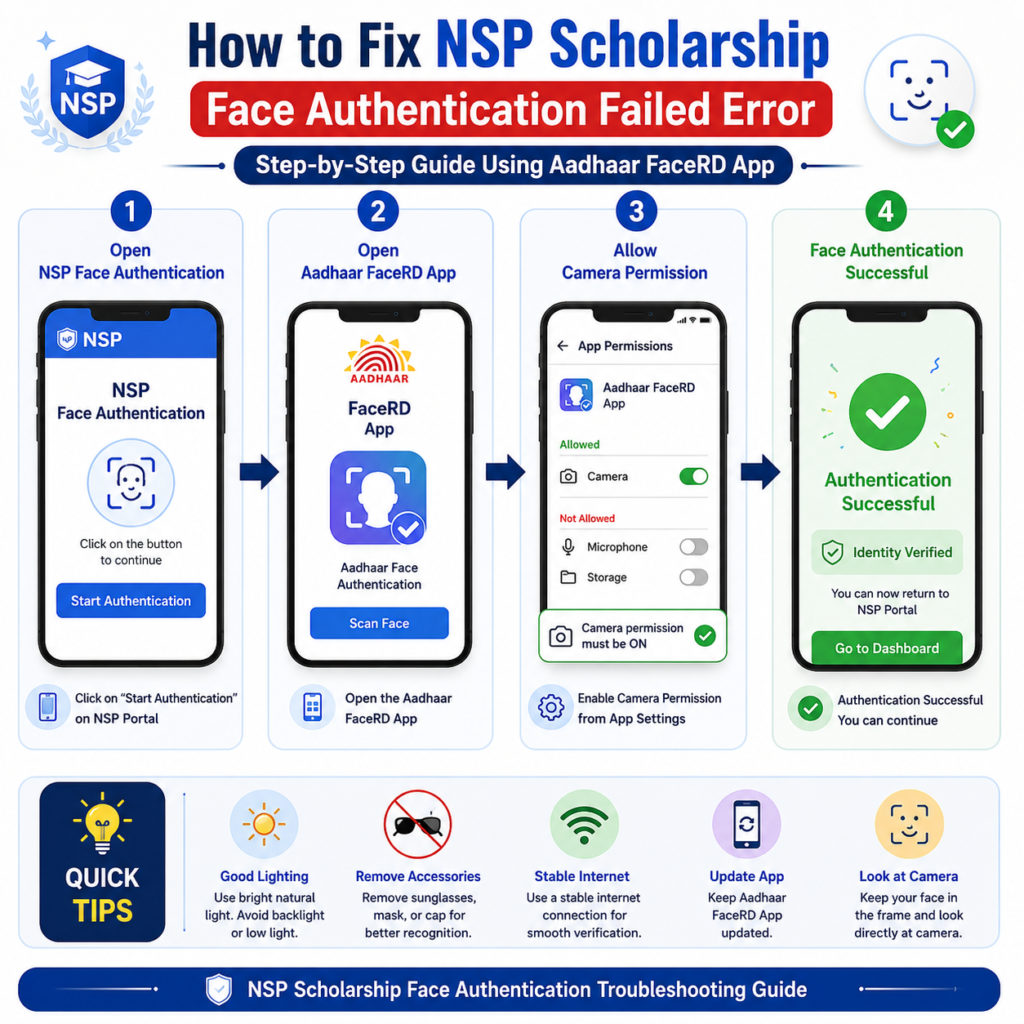
Step-by-Step Process to Complete NSP Face Authentication Successfully
Follow the complete process below to finish Aadhaar face authentication without errors.
Step 1 – Open the NSP Portal
Log in to your National Scholarship Portal account using your registered credentials. Navigate to the application or renewal section where face authentication is required.
Step 2 – Install the Aadhaar FaceRD App
If prompted, download and install the official Aadhaar FaceRD application from the Google Play Store.
Do not use APK files from third-party websites.
Step 3 – Allow All Required Permissions
When opening the app for the first time:
- Allow Camera permission.
- Accept required prompts.
- Ensure no permissions are blocked.
Step 4 – Start Face Authentication
Return to the NSP portal and tap Authenticate.
The FaceRD application will automatically launch.
Step 5 – Position Your Face Properly
Look directly at the camera.
Avoid:
- Tilting your head.
- Looking away.
- Covering your face.
- Moving during the scan.
Remain still until authentication completes.
Step 6 – Wait for Verification
The application communicates with UIDAI servers to verify your identity.
Do not close the app or switch applications during this process.
Step 7 – Authentication Successful
Once verification is completed successfully:
- Return to the NSP portal automatically.
- Continue filling your scholarship application.
- Submit remaining documents if required.
Step-by-Step Face Authentication Process
| Step | Action | Expected Result |
|---|---|---|
| 1 | Log in to NSP Portal | Access scholarship application |
| 2 | Install Aadhaar FaceRD App | Latest authentication support |
| 3 | Grant Camera Permission | Camera becomes accessible |
| 4 | Start Face Authentication | Face scan begins |
| 5 | Keep Face Steady | Better facial recognition |
| 6 | Wait for UIDAI Verification | Authentication in progress |
| 7 | Return to NSP Portal | Verification completed |
| 8 | Continue Application | Scholarship process continues |
| 9 | Submit Required Documents | Application ready for review |
| 10 | Final Submission | Successful NSP application |
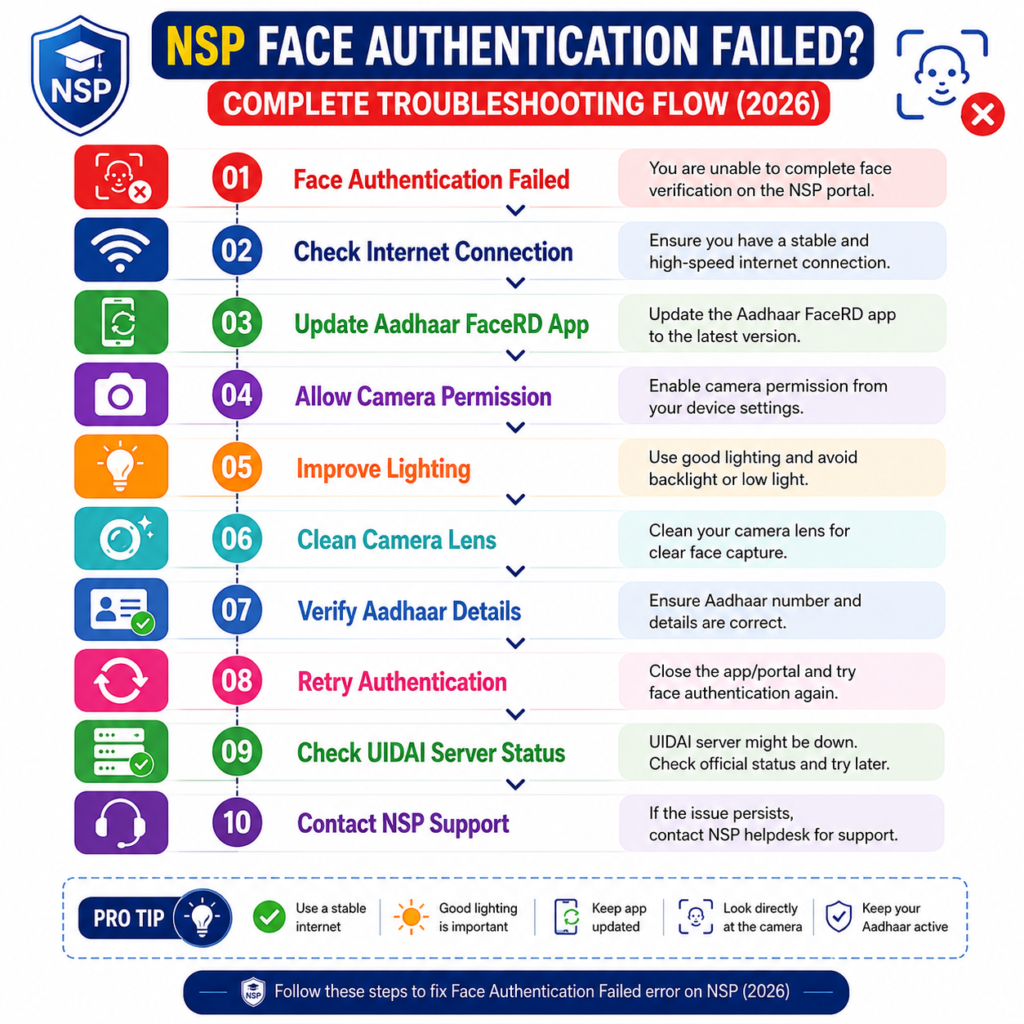
Common NSP Face Authentication Errors and Their Solutions
Most face authentication issues can be resolved without visiting any service center. The table below summarizes the most common errors and the recommended solutions.
Problem vs Solution
| Error/Problem | Possible Cause | Recommended Solution |
|---|---|---|
| Face Authentication Failed | Face mismatch | Retry in proper lighting |
| Aadhaar Face Authentication Failed | Outdated Aadhaar photo | Update Aadhaar photograph |
| Aadhaar App Face Authentication Failed | Old FaceRD app | Install the latest version |
| Camera Permission Denied | Camera blocked | Enable camera permission |
| Authentication Session Expired | Session timeout | Restart the process |
| Credentials Problem | Server synchronization issue | Retry after some time |
| Face Not Detected | Poor lighting or movement | Keep face steady and well-lit |
| Internet Connection Error | Weak network | Switch to stable Wi-Fi or mobile data |
| UIDAI Server Busy | Heavy traffic | Wait and try later |
| Authentication Failed Repeatedly | Device/software issue | Restart or use a compatible Android device |
National Scholarship Portal Official Website
NSP Scholarship 2026-27 Apply Renewal Problem | Renewal Kaise Kare
How do I fix the NSP Scholarship Face Authentication Failed error?
The NSP Scholarship Face Authentication Failed error can usually be fixed by updating the Aadhaar FaceRD app, checking your internet connection, allowing camera permissions, using proper lighting, verifying Aadhaar details, and retrying authentication. If the issue continues, wait for server traffic to reduce or contact NSP support.
FAQs
Why is my NSP face authentication failing?
It may fail due to poor internet connectivity, outdated FaceRD app, camera permission issues, incorrect Aadhaar details, low lighting, or temporary UIDAI server problems.
How can I fix the Aadhaar Face Authentication Failed problem?
Update the Aadhaar FaceRD app, allow camera permissions, use a stable internet connection, improve lighting, and ensure your Aadhaar information is correct.
Is the Aadhaar FaceRD app mandatory for NSP Scholarship?
Yes. If your scholarship application requires Aadhaar face authentication, the official Aadhaar FaceRD application is necessary to complete the verification process.
What should I do if the NSP Face Authentication Credentials Problem appears?
Wait for some time and try again. If the problem continues, restart your phone, reinstall the FaceRD app, verify your Aadhaar details, or contact the NSP Helpdesk.
Can I complete NSP face authentication on another phone?
Yes, but it is generally recommended to complete the entire authentication process on the same compatible Android device to avoid session interruptions.
Does an old Aadhaar photograph cause authentication failure?
Yes. If your Aadhaar photo is very old or your appearance has changed significantly, updating your Aadhaar photograph may improve face authentication accuracy.
Conclusion
The NSP Scholarship Face Authentication Failed error is one of the most common issues students face during the scholarship application and renewal process. Fortunately, in most cases it can be resolved by following simple troubleshooting steps such as updating the Aadhaar FaceRD app, checking camera permissions, improving lighting conditions, and ensuring your Aadhaar details are accurate.
If the problem continues even after trying all the solutions in this guide, don’t panic. Temporary UIDAI or NSP server issues are also common during peak application periods. Waiting for some time or contacting the NSP Helpdesk with complete details is often the best course of action.
By following the methods explained in this guide, you can complete face authentication successfully and continue your scholarship application without unnecessary delays.